
Microsoft Ignite - March 2021
Summary of Microsoft Ignite event in March 2021.
Azure
M365
Microsoft Ignite
Recently, I have been developing a solution to extract data from a Log Analytics workspace using Azure Data Factory. At the time of writing, Azure Data Factory does not have a native connector for Log Analytics workspaces so the Log Analytics REST API must be used instead. These data will then be loaded into an Azure SQL database to be used for reporting.
Whilst it is possible to export M Queries straight out of Log Analytics into Power BI, this will not cater for long-term retention scenarios. A straightforward task I thought, initially. Wrong. In the next four posts, I will go over the steps required to setup the initial environment, extract the data, and finally process/load the data into the SQL database.
To speed things up, I have created a couple of ARM templates and reference PowerShell scripts over on my GitHub. The following PowerShell used in the following steps is all documented there. It is worth cloning this folder onto your local PC.
In later posts, we will need to deploy other resources, but these will be deployed as and when they are needed.
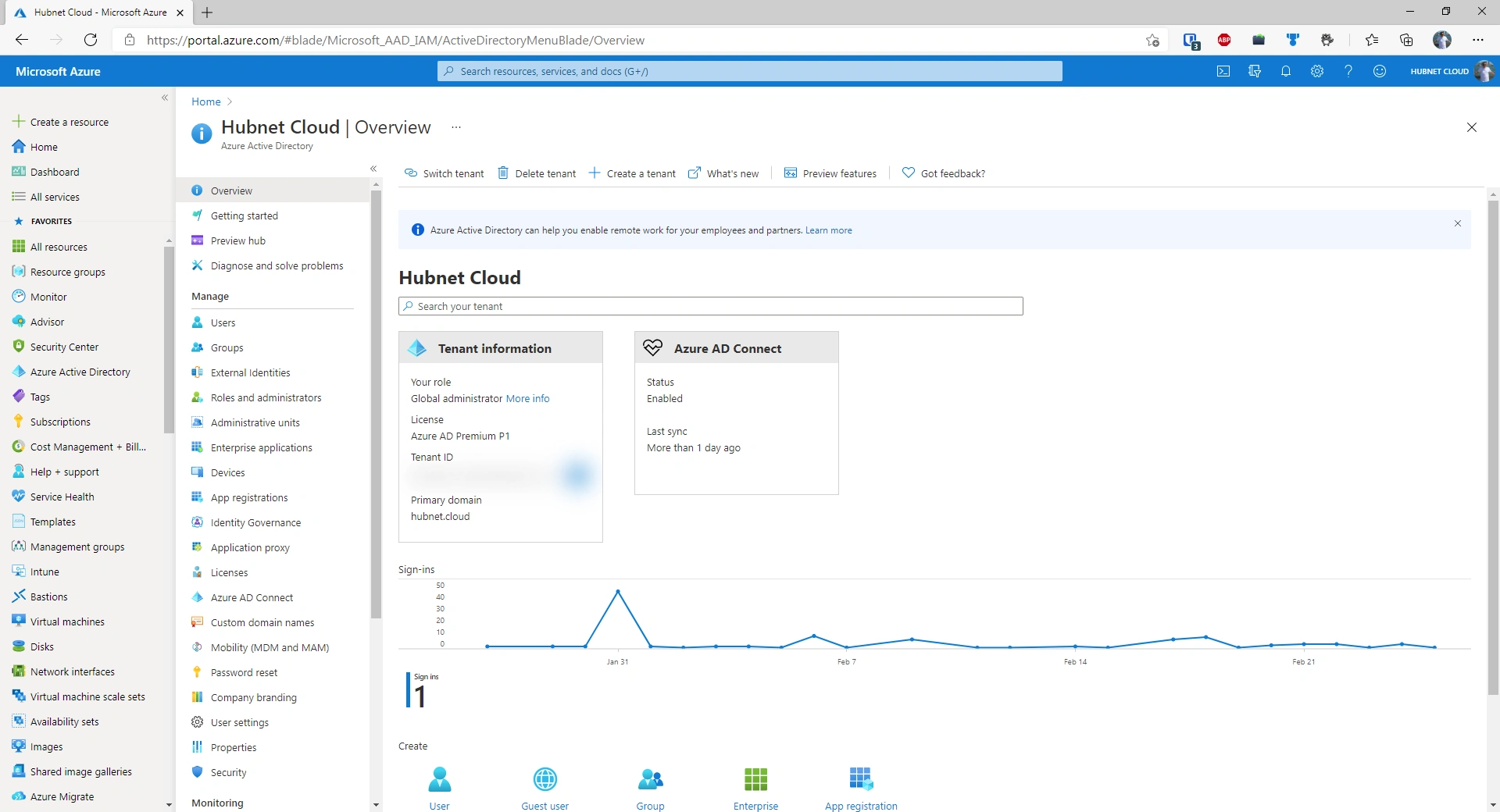
Reference PowerShell in GitHub repository for this section: ‘Deploy Initial Resources.ps1’ Deploy Initial Resources will create the following resources:
(If you do not have an Azure Subscription - please create one before continuing)
##Run if Az PowerShell module is not already installed
Install-Module Az -AllowClobber

##Run if Az PowerShell module is already installed but update check is required
Update-Module Az
Import-Module Az
Connect-AzAccount
Get-AzLocation
##Set paremeters to be used by ARM template
$resourceGroupName = '<randomString>'
$deploymentLocation = '<Shortcode from previous Step>' ##Must be a location property of the output from the previous command
$resourceRandomName = '<randomString>' #Must be globally unique and sixteen characters or less
$tenantId = (Get-AzTenant).Id
$currentUser = (Get-AzContext).Account.Id
$principalObjectId = (Get-AzADUser -UserPrincipalName $currentUser).Id
##Deploy the resource group
New-AzSubscriptionDeployment -Location $deploymentLocation -TemplateFile 'arm-template-resource-group.json' -resourceGroupName $resourceGroupName -deploymentLocation $deploymentlocation
##Deploy the resources
New-AzResourceGroupDeployment -ResourceGroupName $resourceGroupName -TemplateFile 'arm-template-resources.json' -deploymentLocation $deploymentLocation -resourceRandomName $resourceRandomName -tenantId $tenantId -principalObjectId $principalObjectId
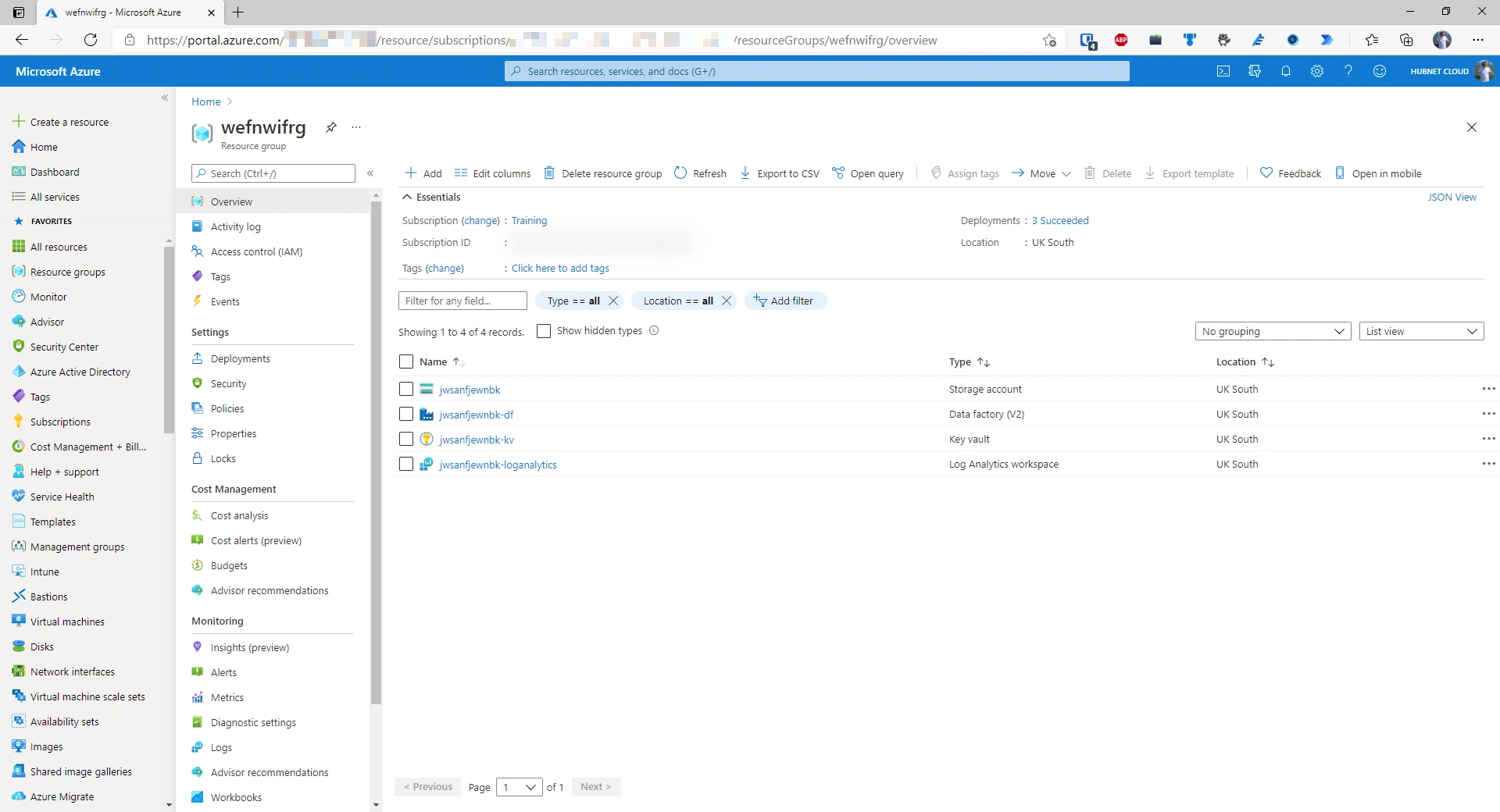
The code reference for this next section is in the GitHub repo as ‘Deploy Service Principal and KeyVault Secrets.ps1’
To authenticate successfully using the Log Analytics REST API, an Azure AD Service Principal with scoped permissions should be created to allow communication via Azure Data Factory.
##Set our variables
$vaultName = $resourceRandomName+,"-kv"
$servicePrincipalName = 'LogAnalyticsReaderService'
$servicePrincipalScope = '/subscriptions/<subscriptionid>/resourceGroups/<resourcegroupname>/providers/Microsoft.OperationalInsights/workspaces/<workspacename>'
##Create Azure AD Service Principal
$createServicePrincipal = New-AzADServicePrincipal -DisplayName $servicePrincipalName -Role 'Log Analytics Reader' -Scope $servicePrincipalScope
##Save service principal client id in KeyVault
Set-AzKeyVaultSecret -VaultName $vaultName -Name 'log-analytics-reader-service-client-id' -SecretValue (ConvertTo-SecureString -AsPlainText ($createServicePrincipal.ApplicationId))
##Save service principal secret in KeyVault
Set-AzKeyVaultSecret -VaultName $vaultName -Name 'log-analytics-reader-service-secret' -SecretValue $createServicePrincipal.Secret
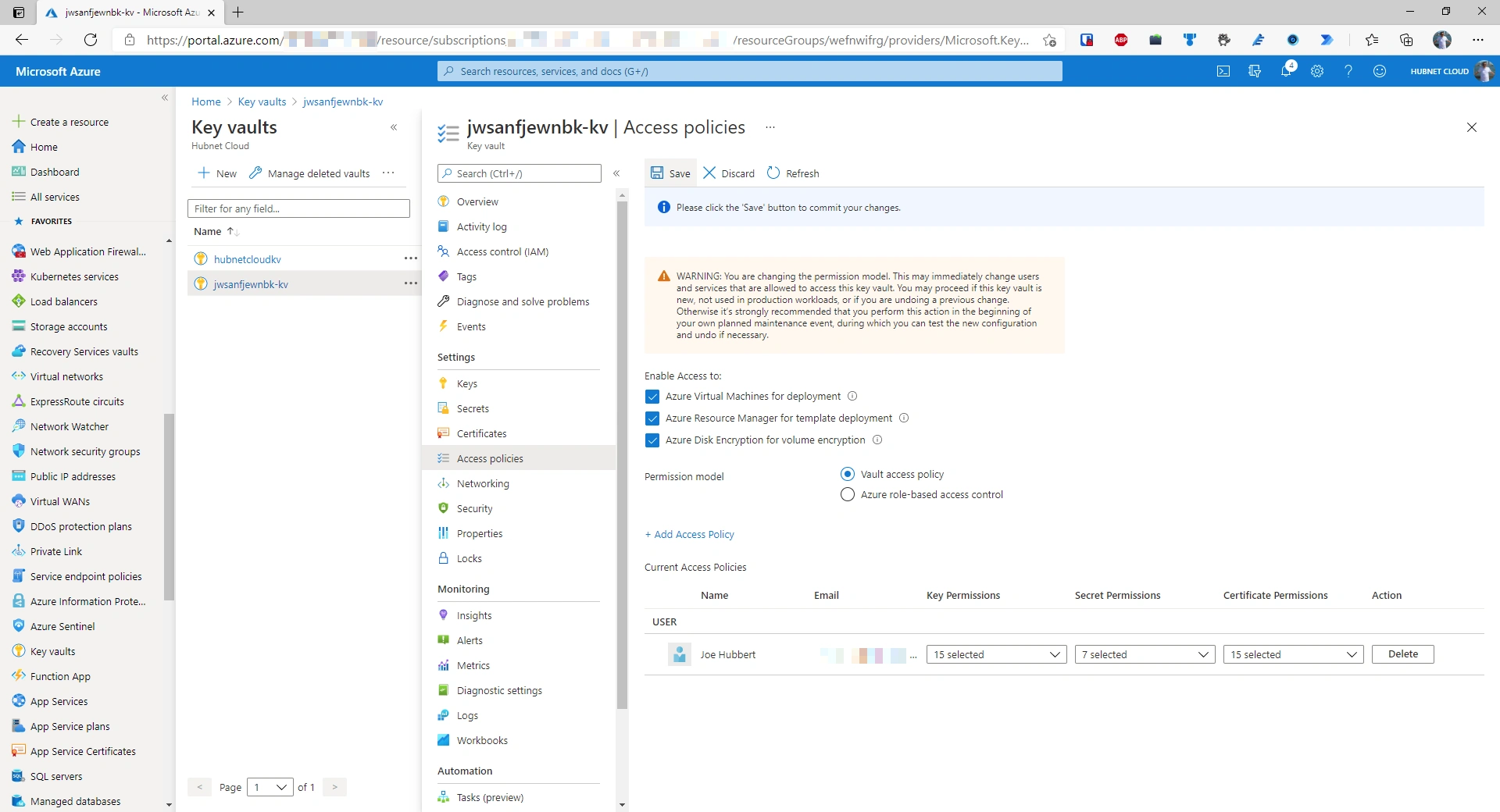
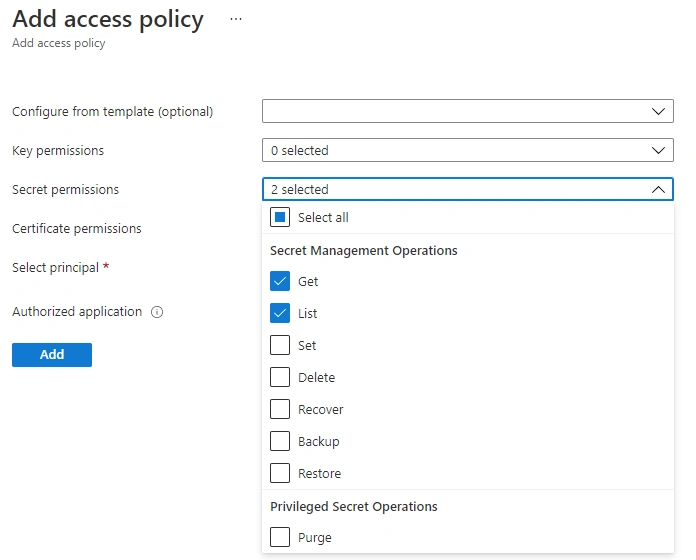
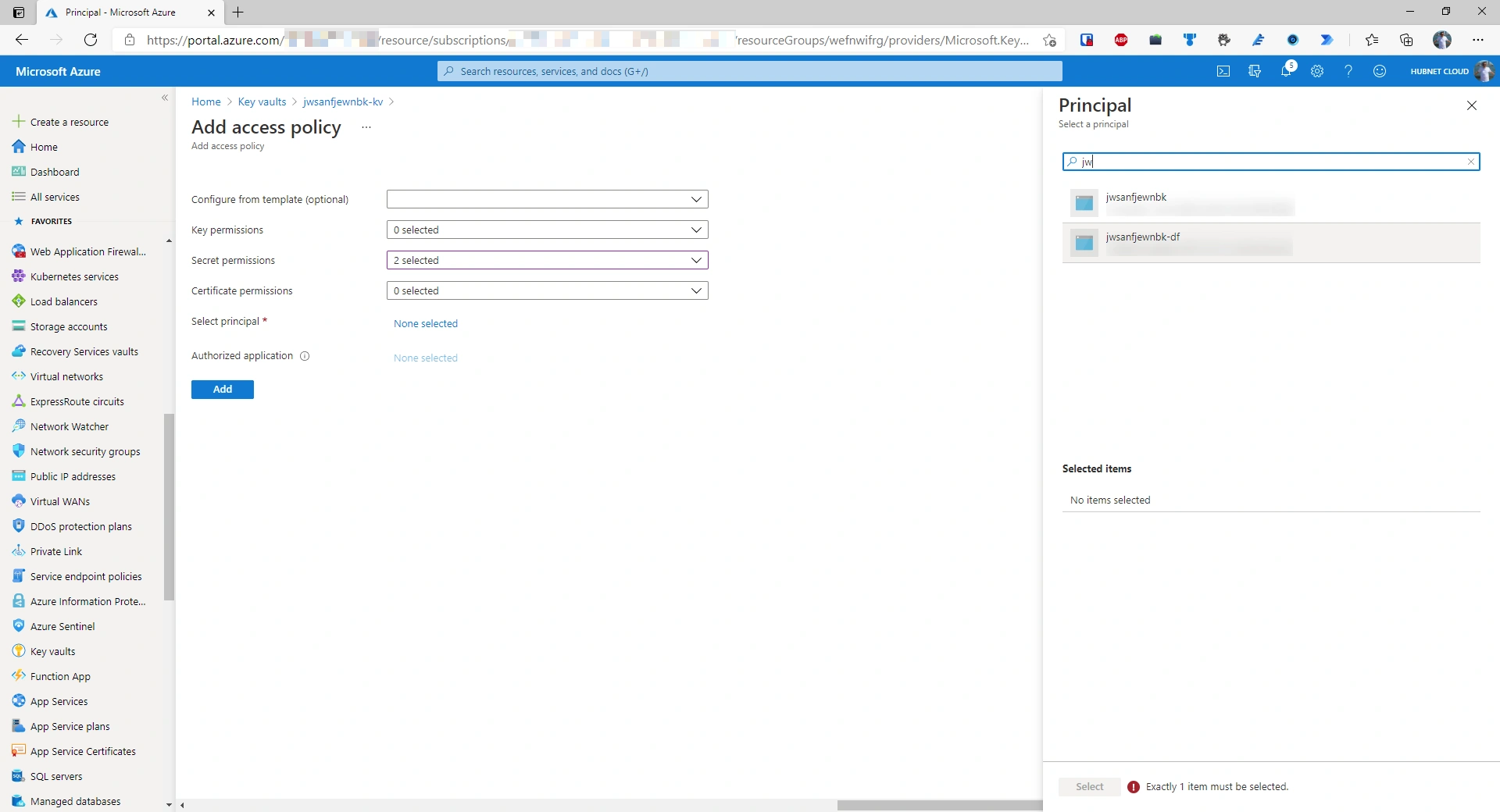
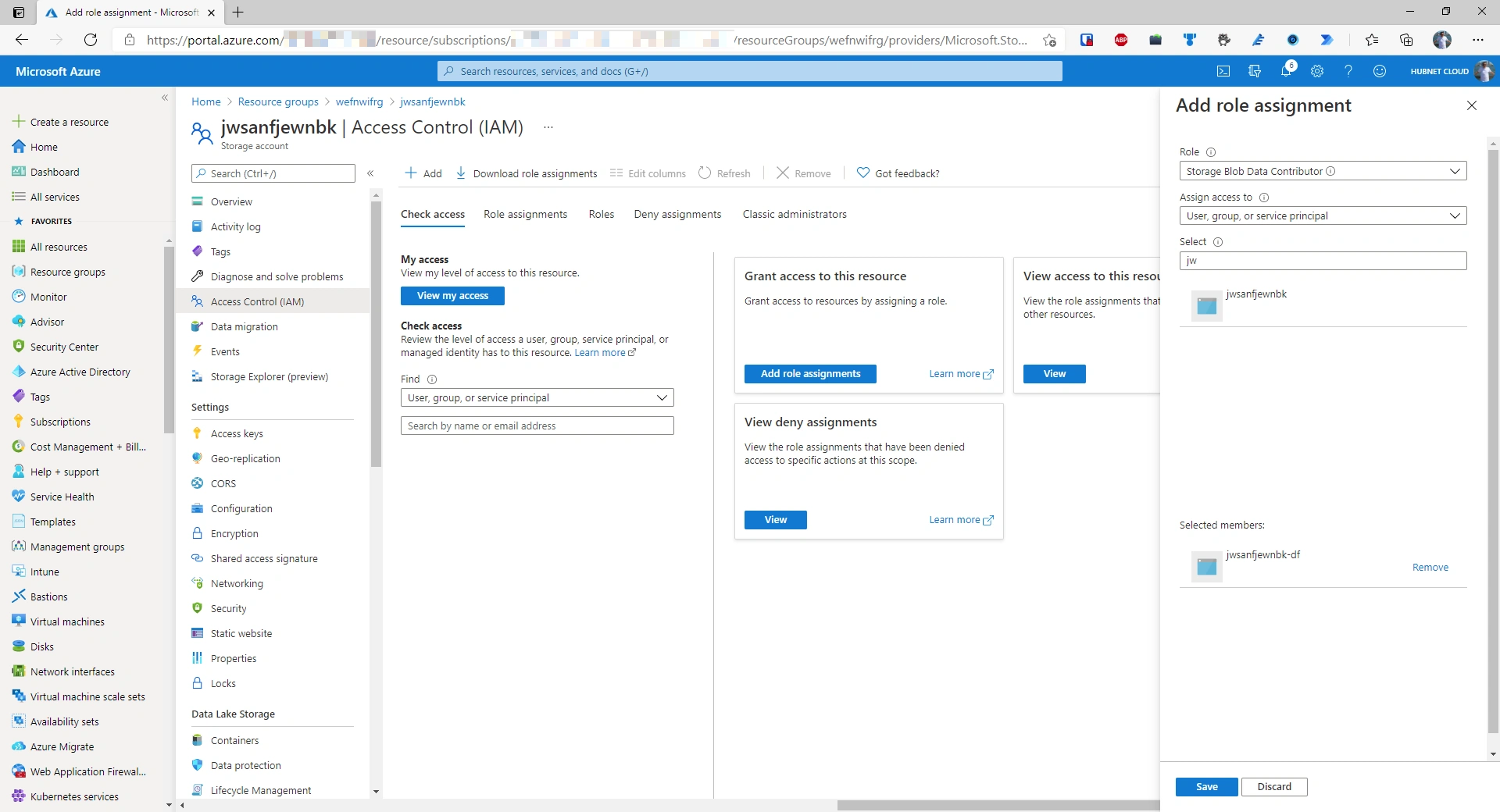
The initial core infrastructure required is set up and ready to go.
In part one, the following activities have been completed:
Stay tuned for part 2 where we configure Azure Data Factory to extract the data from Log Analytics
Summary of Microsoft Ignite event in March 2021.
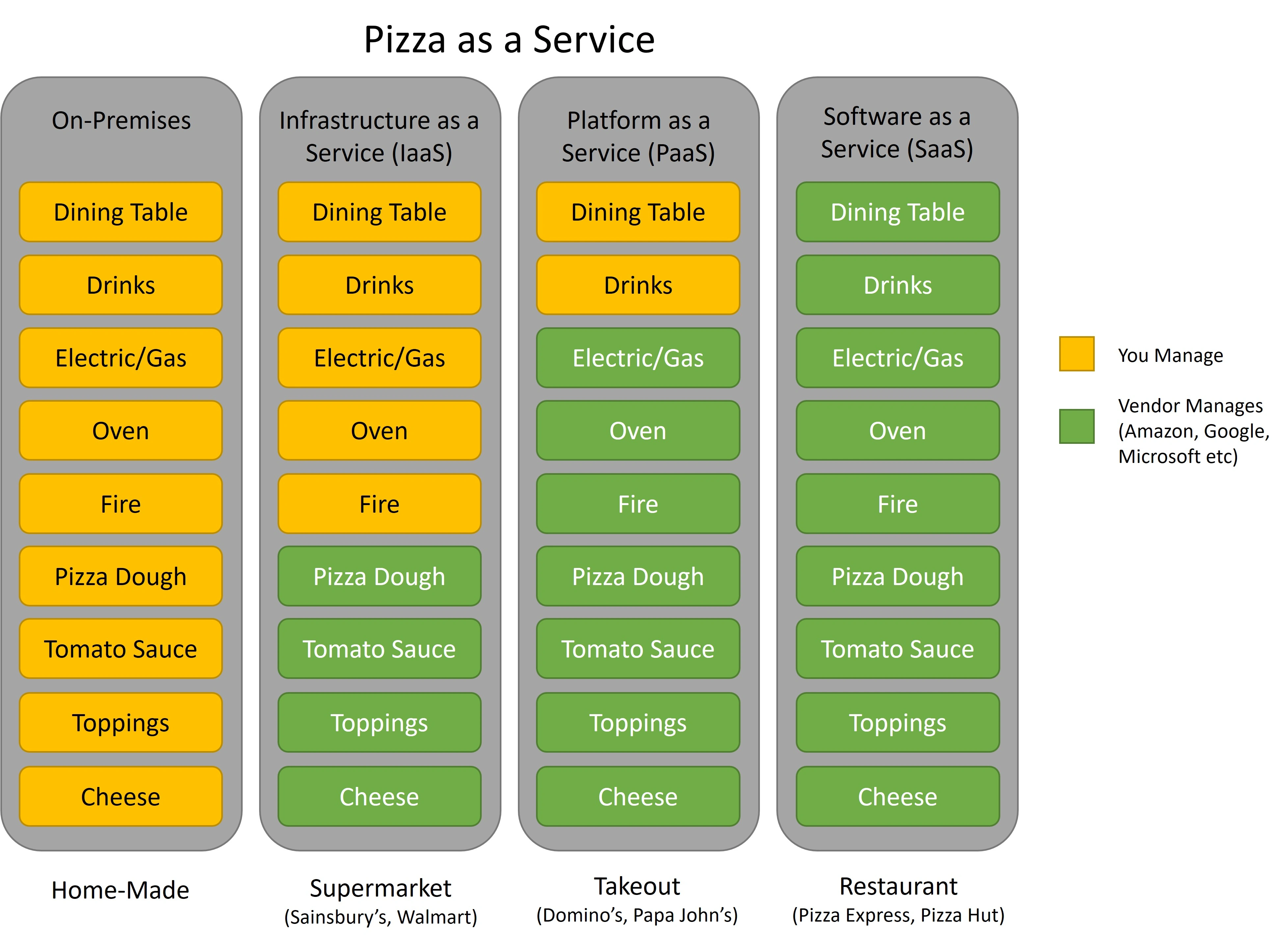
Explaination of differences between Iaas vs Paas vs Saas
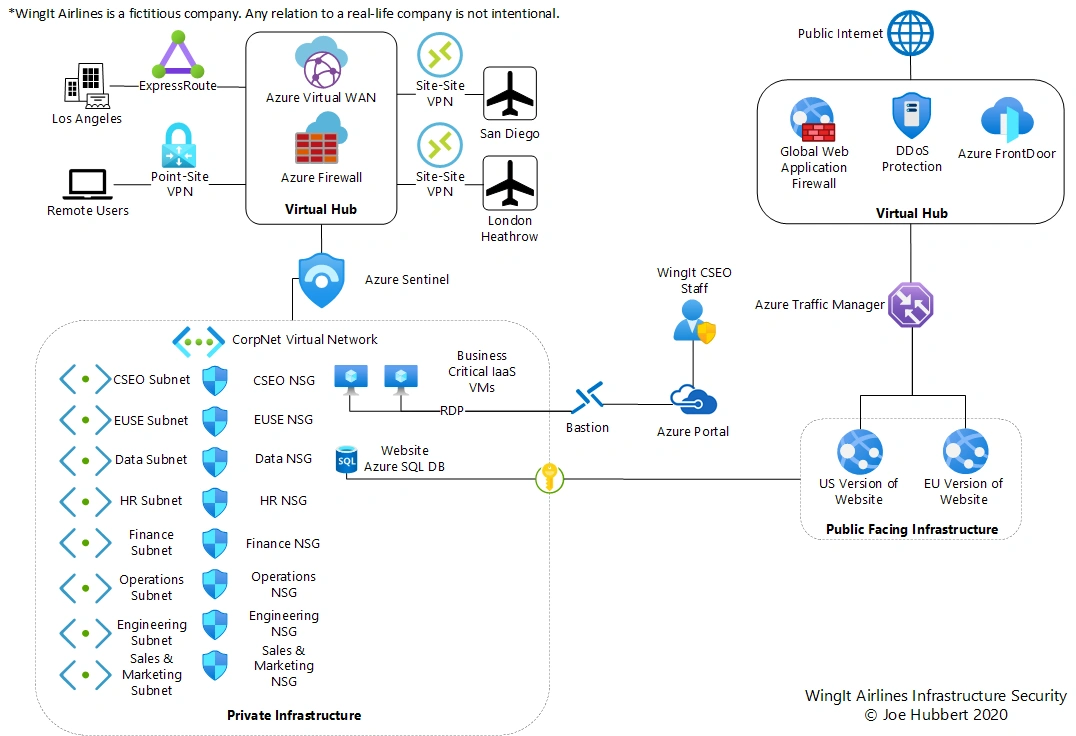
Architecture example of connecting multiple sites using Azure.